Go back to list of posts
Your LinkedIn Digital Business Card: Share in Minutes
Last modified: August 17, 2026


You can use your LinkedIn profile and built-in QR code as a ready-made digital business card right now, no extra app required. Open LinkedIn, tap the QR icon, and hand your phone to anyone in the room. That’s the whole workflow for most networking situations.
Quick-start checklist:
- ✅ Open the LinkedIn app, tap the search bar, and select the QR code icon to display your card
- ✅ Save the QR image to your phone gallery so you can share it even without a signal
- ✅ Copy your profile URL and paste it into your email signature, Featured section, and any follow-up messages
For professionals who need team controls, analytics, or multi-channel sharing, a managed platform like KADO extends what LinkedIn alone can do. Microsoft Outlook also supports Electronic Business Cards (.vcf) so recipients can save your contact details directly from an email signature.
Key Takeaways
Using LinkedIn as your primary digital business card works immediately and costs nothing — a managed platform like KADO adds the tracking, team controls, and CRM sync that LinkedIn alone can’t provide.
| Point | Details |
|---|---|
LinkedIn QR is instant | Open the app, tap the QR icon in the search bar, and share your profile in seconds. |
Profile link goes everywhere | Paste your LinkedIn URL into your email signature, Featured section, and follow-up messages. |
Design for scanability | Use a black-on-white QR, maintain a quiet zone, and test from at least three feet away. |
Check privacy settings first | Set profile visibility to Public and review which contact fields are exposed before sharing. |
KADO extends LinkedIn sharing | Add team admin, analytics, NFC, wallet passes, and CRM sync when LinkedIn alone isn’t enough. |
How do you open and share your LinkedIn QR code?
Open the LinkedIn mobile app, tap the search bar at the top of the screen, and look for the small QR code icon on the right side. Tapping it opens a two-tab view: one tab shows your own QR code, and the other activates your camera to scan someone else’s.
On iOS and Android:
- Tap the search bar on the LinkedIn home screen.
- Select the QR icon (top-right corner of the search bar).
- Your personal QR code appears immediately. Tap “Save to Photos” to export it to your gallery.
- Display it full-screen for someone to scan, or share the saved image via text, email, or a slide deck.
On desktop (linkedin.com): Go to your profile page, click “More” under your profile photo, and select “Save to PDF” or copy your profile URL. The QR code generator lives in the mobile app only, so desktop users should save the image from their phone first.
Quick troubleshooting:
- QR won’t scan: Raise screen brightness to maximum and increase the display size.
- Low contrast: Avoid displaying the QR on a dark phone case background; use a white slide or screenshot instead.
- Distance issues: A QR code displayed at roughly 2.5 inches square scans reliably from about 10 inches away. Larger is always safer.
Pro Tip: Save your LinkedIn QR code as your phone’s lock screen wallpaper before a conference. You can hand your phone to a new contact without unlocking it, and they scan instantly.
How do you share your LinkedIn profile link without a QR code?
Copying your profile link is the fastest QR-free sharing method, and it works anywhere you can paste text.
On mobile: Tap your profile photo, select “View Profile,” tap the three-dot menu (⋯) in the top-right corner, and choose “Copy Link.” On desktop, visit your profile and copy the URL directly from the browser address bar.
Where to place your link:
- Featured section: Pin it as the first item so visitors see it immediately.
- Contact Info: Add it under “Website” with a label like “LinkedIn Profile.”
- Email signature: Embed it as hyperlinked text (“Connect on LinkedIn”) next to your name and title.
- LinkedIn About section: Drop the short URL at the end of your summary.
Ready-to-use message templates:
Same-day text after meeting someone: “Great meeting you at [Event] today. Here’s my LinkedIn: [your URL] — let’s stay connected.”
24-hour LinkedIn message: “Hi [Name], enjoyed our conversation about [topic] yesterday. I’d love to keep in touch — feel free to reach out anytime.”
One-week email follow-up: “Hi [Name], following up from [Event] last week. I’ve linked my profile below if you’d like to connect or share it with your team: [your URL].”
When does a managed digital card tool add real value beyond LinkedIn?
LinkedIn is excellent for quick, ad-hoc sharing. Use a managed platform when you need tracking, team controls, fast real-time edits, or multiple sharing channels at once.
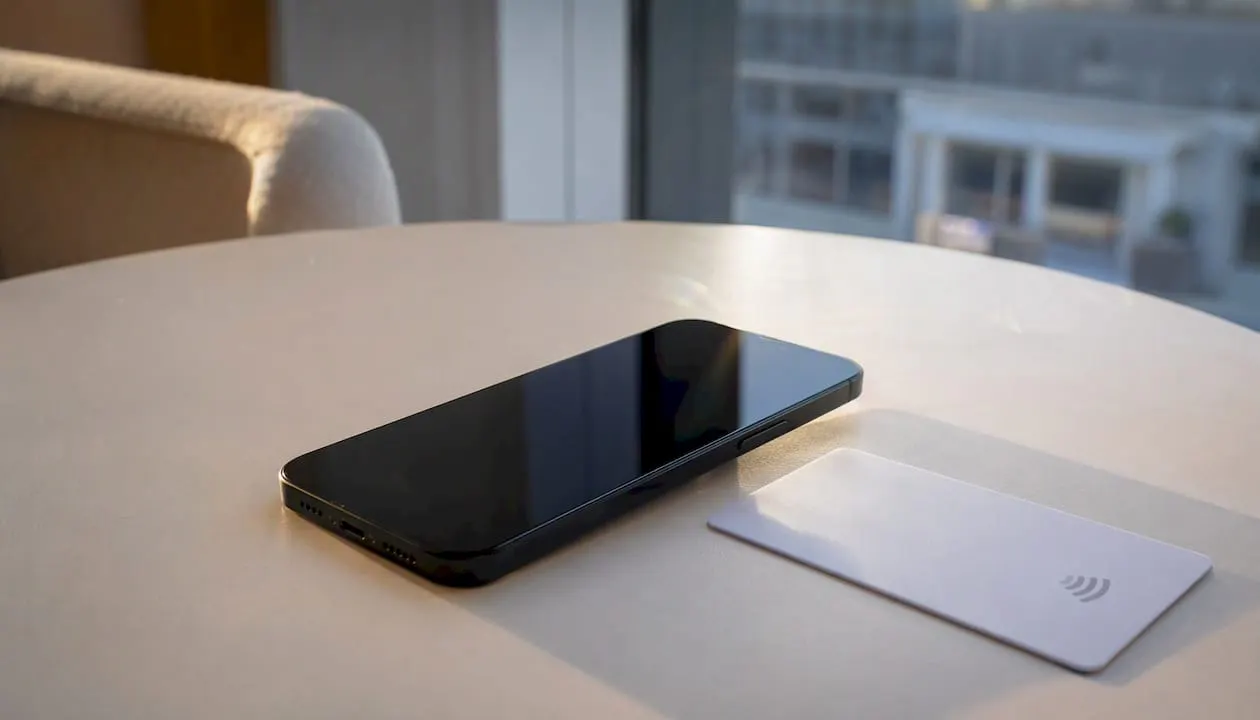
LinkedIn’s QR code links to your public profile, which you can’t brand, gate, or track. You also can’t see who scanned it, capture opt-in details, or push updates to a team of 50 reps simultaneously. That’s where a purpose-built digital card platform earns its place.
What managed tools typically provide:
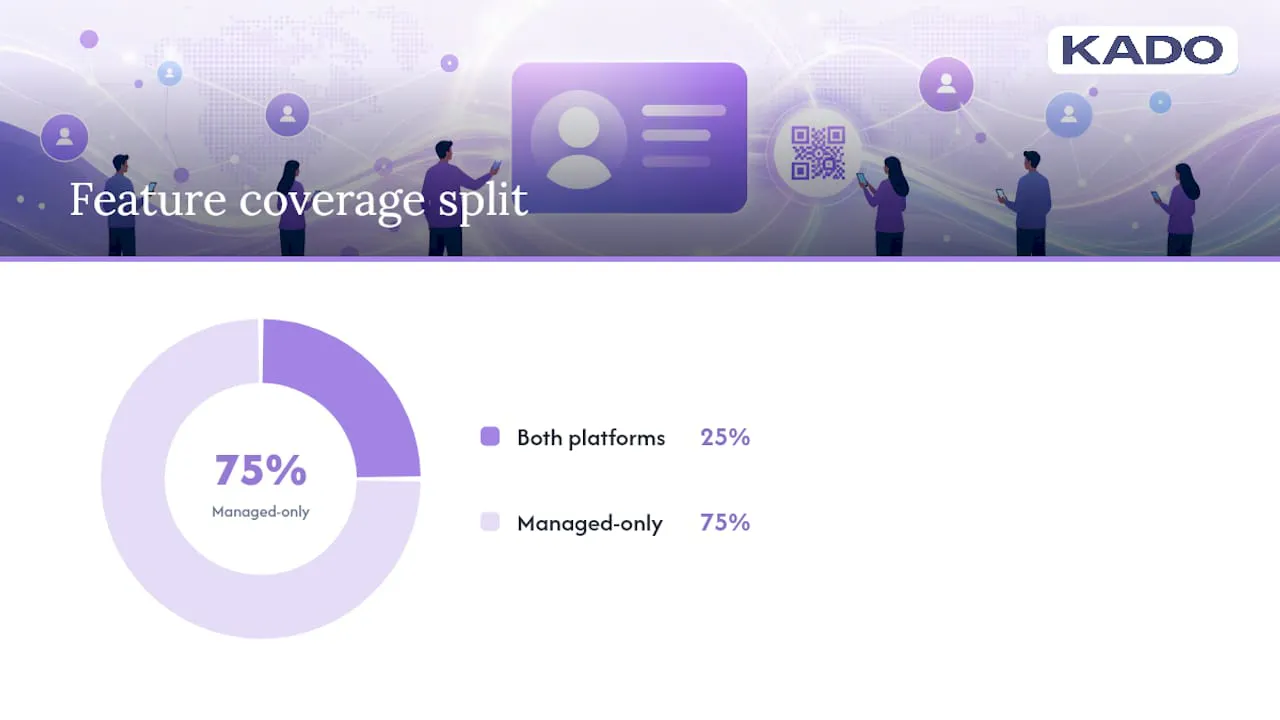
| Feature | LinkedIn QR/Link | Managed Platform |
|---|---|---|
Real-time card edits | ✅ (profile update) | ✅ (instant, no reprint) |
QR code sharing | ✅ | ✅ |
NFC card support | ❌ | ✅ |
Apple/Google Wallet pass | ❌ | ✅ |
Scan analytics | ❌ | ✅ |
Lead capture forms | ❌ | ✅ |
CRM integration | ❌ | ✅ (Salesforce, HubSpot, etc.) |
Team/admin controls | ❌ | ✅ |
Who benefits most: Sales reps who attend multiple events, conference sponsors tracking booth traffic, recruiters managing candidate pipelines, and event teams that need every member sharing a consistent branded card.
KADO covers all of these scenarios from one platform: team admin controls, analytics, CRM sync with Salesforce and HubSpot, and multi-channel sharing via QR, NFC, and wallet passes. For service professionals and recruiters, the lead capture and follow-up features alone justify the switch from LinkedIn-only sharing.
Pro Tip: If your team attends more than two events per quarter, the time saved on manual contact entry with a managed platform typically outweighs the subscription cost within the first event.
What should your LinkedIn QR business card actually include?
Prioritize scanability and a single clear call to action. Visual polish matters, but a QR code that fails to scan or a card cluttered with five links converts no one.
Checklist for a QR-enabled card or image:
- ✅ Full name and current job title
- ✅ Company name (and logo if space allows)
- ✅ One primary contact method (email or phone, not both)
- ✅ A short tagline or value statement (one line)
- ✅ Your LinkedIn QR code or profile URL
- ✅ Optional: wallet pass link or managed card URL for richer follow-up
Visual tips for a scannable QR card:
- Use high contrast: black QR on a white background, always. Colored QR codes fail more often than people expect.
- Maintain a quiet zone (blank border) of at least four modules wide around the QR code on all sides.
- For printed cards, the QR should be no smaller than 1 inch × 1 inch. For digital display, 300 × 300 pixels is a reliable floor.
- Test the scan from at least three feet away before printing or publishing.
Adobe Express offers free templates and export options that make it straightforward to build a polished QR card image. VistaPrint’s guide also recommends keeping card content minimal and scannable, a principle that holds whether your card is printed, digital, or both.
Pro Tip: Generate your QR code at the highest error-correction level (level H) so it remains scannable even if up to 30% of the image is covered by a logo or design element.
How do recipients scan and save your LinkedIn contact?
Scanning your QR code opens your LinkedIn profile in the recipient’s browser. From there, the easiest save is tapping “Connect” on your profile or manually saving your contact details.
Device-specific workflows:
- iOS (iPhone): The native camera app scans LinkedIn QR codes and opens Safari. Recipients tap “Connect” on your profile or copy your contact info manually. For a richer save, share a vCard (.vcf) file via email so they can tap “Add to Contacts” directly.
- Android: Google Lens or the native camera handles the scan and opens Chrome. Recipients can save your profile link to Google Contacts or tap “Connect” in the LinkedIn app if installed.
- Outlook (desktop or mobile): If you’ve attached an Electronic Business Card (.vcf) to your email signature, recipients click it and Outlook imports your details into their contacts automatically, no scanning required.
Lead capture note: LinkedIn doesn’t tell you who scanned your QR code or clicked your profile link. A managed platform like KADO surfaces that data, shows who engaged with your card, and lets recipients submit their own details through an opt-in form, turning a passive scan into a captured lead.
Which LinkedIn settings should you check before sharing your card?
Review your visibility and contact settings so you share exactly what you intend, and nothing more.
Settings checklist before you go live:
- ✅ Profile visibility: Set to “Public” for all sections you want contacts to see (go to Settings → Visibility → Edit your public profile).
- ✅ Contact info fields: Confirm your email address, phone number, and website are set to the visibility level you want (connections only vs. public).
- ✅ Featured section: Remove any pinned posts or links you wouldn’t want a new contact to see first.
- ✅ Activity broadcasts: Under Settings → Visibility → Share profile updates, decide whether you want connections notified every time you edit your profile.
- ✅ Profile photo: Make sure your photo is visible to “All LinkedIn members,” not just connections, so new contacts recognize you immediately.
A quick note on phone numbers and personal email addresses: if you’d rather not expose them publicly, leave those fields blank on LinkedIn and share them only through a managed card that requires an opt-in. That keeps your public profile clean while still letting warm contacts reach you directly. Building a thoughtful digital footprint means controlling what’s visible and to whom, not just maximizing exposure.
When should you use your LinkedIn card, and what follow-up messages actually work?
Use your LinkedIn QR code or profile link at in-person events, quick meet-and-greets, and in your email signature. Use a managed card for campaigns, tracked outreach, and any situation where you need to measure results.
Best moments to share your LinkedIn card:
- ✅ Conference hallway conversations and booth visits
- ✅ Post-panel introductions and speaker meet-and-greets
- ✅ Virtual calls (drop the link in chat)
- ✅ Email signatures for ongoing outreach
Follow-up templates that reference the event:
Same-day (text or DM): “Hi [Name] — great connecting at [Event]. Sending my LinkedIn so we don’t lose touch: [URL].”
24-hour LinkedIn message: “Hi [Name], I enjoyed hearing your take on [topic] at [Event]. Happy to share resources or intro you to anyone in my network.”
One-week email: “Hi [Name], checking in after [Event]. If [topic we discussed] is still on your radar, I’d love to set up a quick call. My LinkedIn is below.”
Simple KPIs to track:
- New connections gained within 48 hours of an event
- Profile views in the week following the event (visible in LinkedIn analytics)
- Link clicks if you use a UTM-tagged URL in your email signature
When those numbers matter to your business, adding UTM parameters to your profile link or switching to a managed platform with built-in analytics gives you cleaner data with less manual work. A strong online presence compounds over time, and tracking it from the start makes the growth visible.
Why we switched to LinkedIn-first sharing (and what we’d tell you to do differently)
Paper cards feel permanent, but they go stale fast. A title change, a new phone number, a rebrand — and suddenly a stack of cards is wrong before the box is empty. Switching to LinkedIn-first sharing meant every contact we handed our profile to always saw the current version, no reprints, no awkward “oh, that number’s changed” moments.
The one practical tip we’d pass on: keep a single high-contrast QR image saved in your phone’s camera roll, not buried in an app. When you’re mid-conversation at a conference and someone says “how do I reach you?”, pulling up a saved image takes two seconds. Opening an app, logging in, and navigating to a QR screen takes ten, and that pause breaks the moment.
Pair that image with a short, natural script: “Here’s my LinkedIn — just scan that and we’re connected.” Simple, confident, done.
KADO gives you everything LinkedIn sharing can’t track
LinkedIn’s QR code is a great starting point. But when your team needs consistent branding across 50 reps, real-time analytics on who engaged with your card, and leads that flow directly into your CRM, LinkedIn alone leaves gaps.
KADO fills those gaps without adding complexity. You get real-time card edits that push instantly to every shared link, NFC and Apple/Google Wallet support for tap-to-share moments, lead capture forms that collect opt-in contact details, and analytics that show exactly who viewed and saved your card. CRM integrations with Salesforce, HubSpot, and Microsoft Dynamics mean captured contacts sync automatically, no manual entry.
For teams heading into a conference season, KADO’s event ROI tracking connects card shares to pipeline so you can see which networking moments actually converted. If contact management and follow-up workflows are the priority, the contact management features let you tag, note, and remind yourself to follow up from the same place you shared your card.
Get your KADO card live in minutes and see how it fits alongside your existing LinkedIn presence.
Sources
Frequently Asked Questions
How do you create a LinkedIn business card?
Open the LinkedIn mobile app, tap the search bar, and select the QR code icon to display your personal card. Save the QR image to your phone gallery to share it anywhere, or copy your profile URL for text and email use.
Is there a way to have a digital business card without a separate app?
Yes. LinkedIn’s built-in QR sharing feature works as a digital business card with no extra account or download required on the recipient’s end.
How do people put their LinkedIn on a physical business card?
Print your LinkedIn QR code or your short profile URL (linkedin.com/in/yourname) directly on the card. Recipients scan the QR with any smartphone camera to reach your profile instantly.
Are digital business cards a good idea for professionals?
Yes. Digital cards stay current when your details change, require no reprinting, and let recipients save your contact in seconds. Managed platforms like KADO add analytics and CRM sync for professionals who need measurable networking results.
How do recipients save a contact from a LinkedIn QR scan?
Scanning the QR opens the sender’s LinkedIn profile in a browser. Recipients tap “Connect” to link on LinkedIn, or the sender can share a .vcf file via email so recipients can import the contact directly into Outlook or their phone’s contacts app.